PayPal Checkout
The PayPal Checkout plugin shows PayPal's payment buttons right on the aMember payment page. Customers pay with their PayPal account, a credit or debit card, and, if you enable them, Venmo or Pay Later. The plugin uses PayPal's current REST API and webhooks. It replaces the PayPal Website Payments Standard integration, which PayPal now calls legacy.
To connect aMember PRO to PayPal, you copy three values from the PayPal Developer Dashboard into aMember CP:
| aMember CP field | Value from PayPal |
|---|---|
| Client ID | Client ID of the REST app you create for aMember |
| Secret | Secret key of the same app |
| Webhook ID | ID of the webhook you add to the app |
Choose how recurring payments are billed
Section titled “Choose how recurring payments are billed”The Recurring billing setting decides who charges the renewals of a subscription. Choose it before you start, because it changes what you set up in PayPal.
| PayPal Subscriptions | Expanded Checkout | |
|---|---|---|
| Who charges renewals | PayPal | aMember, from cron |
| Setup in PayPal | A subscription plan for every recurring aMember billing plan | Advanced card payments and the Vault feature, approved by PayPal for live payments |
| Card fields | In the PayPal window | On the aMember payment page |
| aMember requirements | None | The Credit Card Billing (cc) module enabled and cron running |
| When to use | Simple setups with few recurring plans | Many plans, or prices that change often |
One-time products work the same way in both modes and need no extra setup.
Before you start: sandbox and live
Section titled “Before you start: sandbox and live”PayPal keeps sandbox (testing) and live credentials apart. A sandbox app has its own Client ID, Secret and webhooks, and works only with sandbox test accounts.
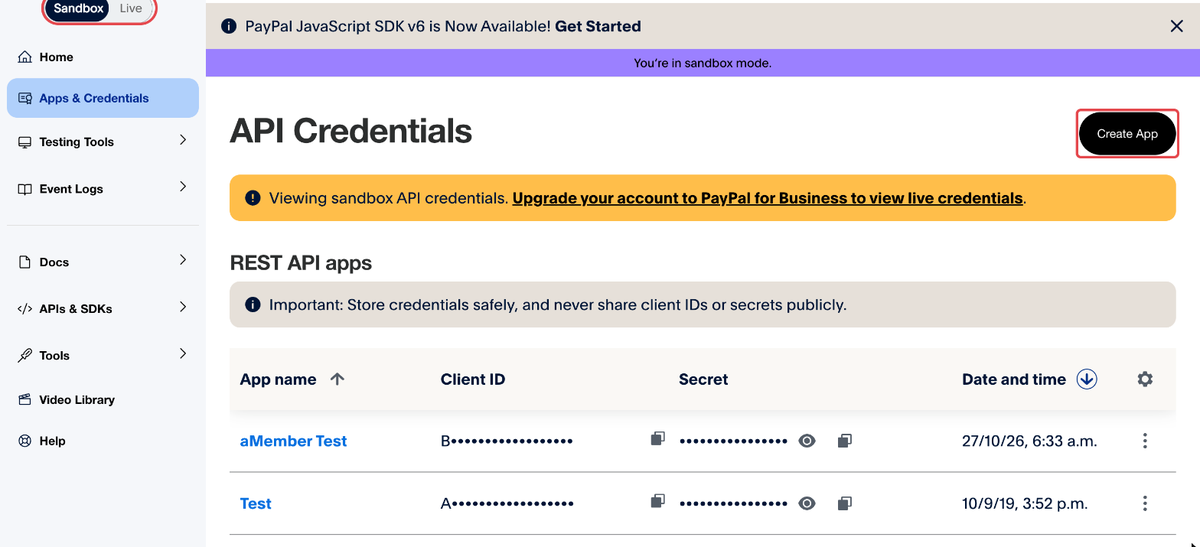
- Use the Sandbox / Live switch at the top left of the Developer Dashboard to select the mode.
- Live credentials are available only for a PayPal Business account.
- Set up and test everything in the sandbox first. Then switch to Live and repeat steps 2–4 with a live app.
The screenshots below were taken in the sandbox.
Step 1. Enable the plugin in aMember
Section titled “Step 1. Enable the plugin in aMember”-
In aMember CP, open Configuration → Add-ons.
-
Type
paypalinto the filter box. -
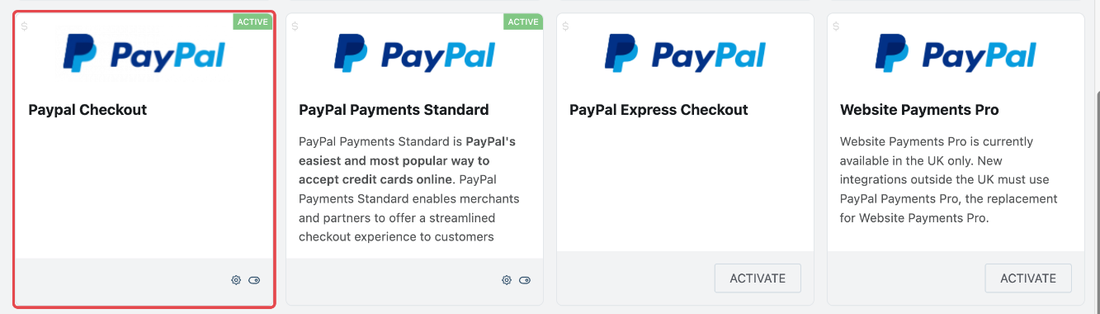
On the Paypal Checkout card, click Activate. When the plugin is active, the card shows an ACTIVE label and a gear icon.
-
Click the gear icon, or open Configuration → Setup/Configuration → PaypalCheckout. Keep this page open: you paste the PayPal values into it in the next steps.
Step 2. Create a REST app in PayPal
Section titled “Step 2. Create a REST app in PayPal”-
Sign in to the PayPal Developer Dashboard with your PayPal Business account.
-
Select Sandbox or Live at the top left, then open Apps & Credentials.
-
Click Create App.
-
Enter an App Name such as
aMember PROand keep Merchant selected as the type. In the sandbox, also select the Sandbox Business Account that receives the payments. Click Create App.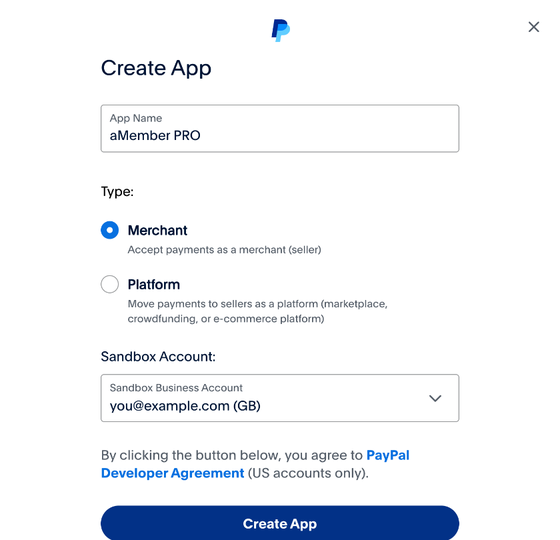
Step 3. Copy the Client ID and Secret
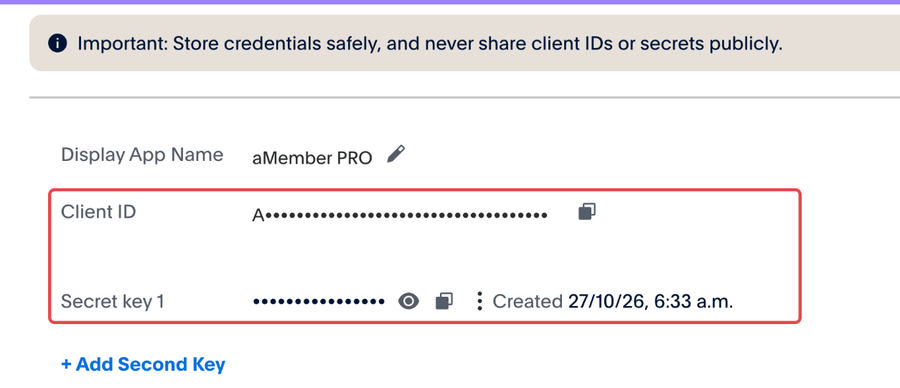
Section titled “Step 3. Copy the Client ID and Secret”PayPal opens the page of the new app. You can return to it later from Apps & Credentials by clicking the app name.
-
Click the copy icon next to Client ID and paste the value into Client ID in aMember CP.
-
Click the copy icon next to Secret key 1 and paste the value into Secret in aMember CP.
-
In aMember CP, tick Is it a Sandbox(Testing) Account? if you copied the credentials of a sandbox app. Leave it unticked for a live app.
Step 4. Add a webhook and copy the Webhook ID
Section titled “Step 4. Add a webhook and copy the Webhook ID”PayPal uses the webhook to tell aMember about payments, subscription renewals and refunds. aMember checks every webhook with PayPal using the Webhook ID and rejects all notifications while the Webhook ID is empty.
The webhook URL of your aMember installation is:
https://example.com/amember/payment/paypal-checkout/ipnReplace https://example.com/amember with the URL of your aMember installation.
-
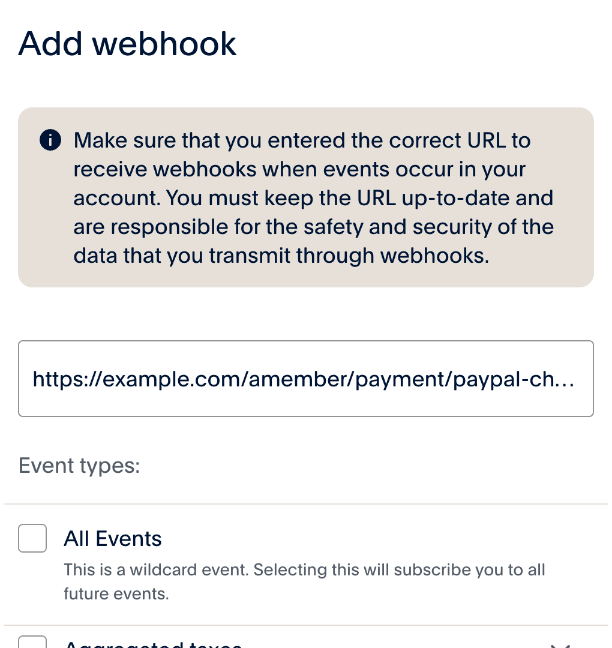
On the app page, scroll down to Sandbox Webhooks (or Live Webhooks) and click Add Webhook.
-
Paste your webhook URL into Webhook URL.
-
In Event types, tick these events. PayPal groups them by category: expand a category to see its events.
Event in PayPal Event type Why aMember needs it Payment capture completed PAYMENT.CAPTURE.COMPLETEDRecords one-time payments and Expanded Checkout payments Billing subscription activated BILLING.SUBSCRIPTION.ACTIVATEDStarts a PayPal subscription in aMember Payment sale completed PAYMENT.SALE.COMPLETEDRecords renewals that PayPal charges Payment capture refunded PAYMENT.CAPTURE.REFUNDEDRecords refunds you make in PayPal Payment sale refunded PAYMENT.SALE.REFUNDEDRecords refunds of subscription payments Vault payment-token created VAULT.PAYMENT-TOKEN.CREATEDExpanded Checkout: saves the payment method for renewals Vault payment-token deleted VAULT.PAYMENT-TOKEN.DELETEDExpanded Checkout: asks the customer to update a deleted payment method 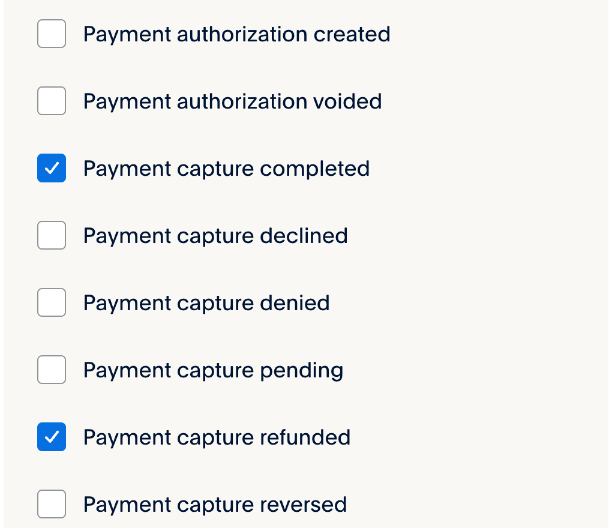
-
Scroll to the bottom of the dialog and save the webhook.
-
The webhook appears in the list. Copy its Webhook ID and paste it into Webhook ID in aMember CP.
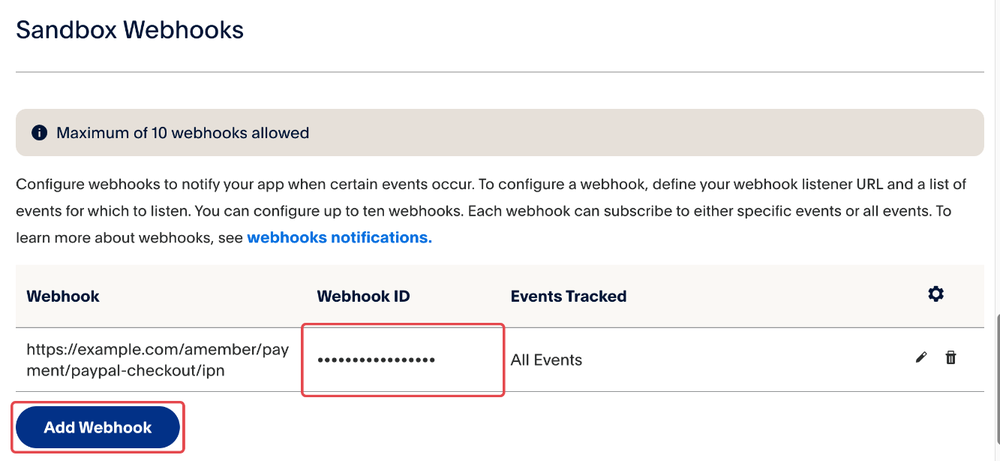
Sandbox and live apps have different webhooks and Webhook IDs. When you switch aMember to the live app, add the webhook to the live app and copy its ID too.
Step 5. Configure the plugin settings in aMember
Section titled “Step 5. Configure the plugin settings in aMember”The credential fields are now filled in:
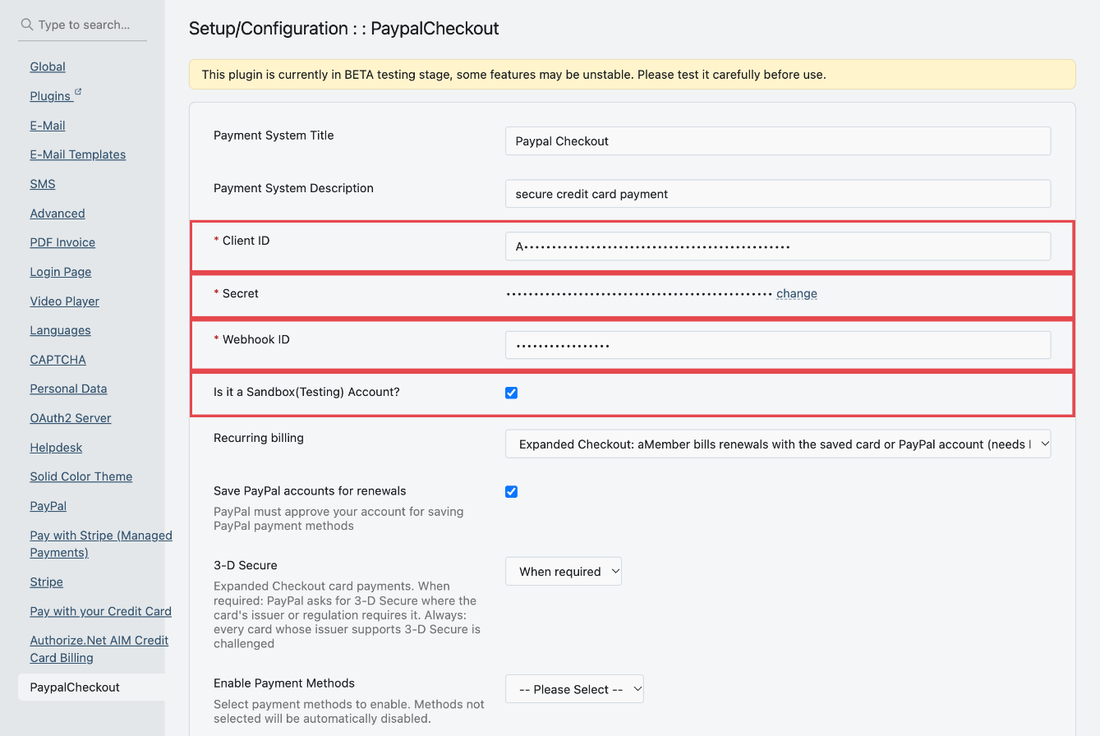
Set the remaining options and click Save:
| Setting | What it does |
|---|---|
| Recurring billing | PayPal Subscriptions or Expanded Checkout, see above. |
| Save PayPal accounts for renewals | Expanded Checkout: saves the customer's PayPal account, not only cards, for renewals. PayPal must approve your account for saving PayPal payment methods. |
| 3-D Secure | Expanded Checkout card payments. When required asks for 3-D Secure only where the card issuer or regulation requires it. Always challenges every card that supports it. |
| Enable Payment Methods | Extra payment buttons to show: Venmo, Pay Later, Credit/Debit Card. Methods you do not select are hidden. |
Then complete step 6 or step 7, depending on the mode you selected.
Step 6. PayPal Subscriptions mode: link billing plans
Section titled “Step 6. PayPal Subscriptions mode: link billing plans”In this mode PayPal bills the renewals, so every recurring aMember billing plan needs a matching subscription plan in PayPal. One-time billing plans need no PayPal plan.
-
Sign in to your PayPal Business account and open Subscription plans (Pay & Get Paid → Subscriptions → Subscription plans). For testing, sign in with the sandbox business account and open sandbox subscription plans.
-
Create a PayPal product first, then add a subscription plan to it.
-
Set the plan's currency, price, billing interval, trial period and setup fee exactly as in the aMember billing plan, and activate the plan. PayPal charges the terms saved in the plan and does not accept other prices when a subscription starts.
-
Copy the plan ID. It starts with
P-. -
In aMember CP, open Products → Manage Products, edit the product, and paste the ID into Paypal Billing Plan ID of its billing plan. Save the product. Repeat for each recurring billing plan.
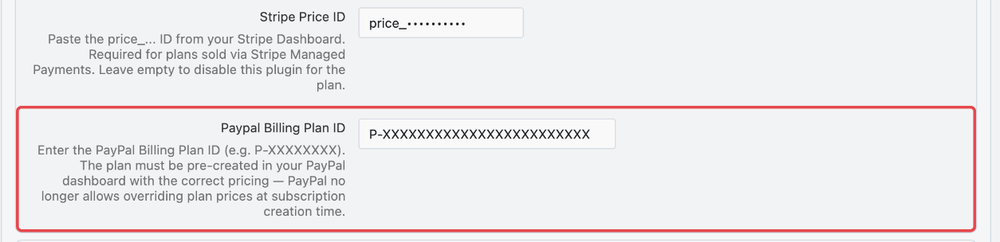
aMember checks the amount and currency of every PayPal payment against the invoice, and the plan ID of every new subscription against the billing plan. A payment of a PayPal plan whose price differs from the aMember billing plan is rejected and logged in Utilities → Logs → Invoice. If a recurring billing plan has no PayPal plan ID, customers see an error instead of the PayPal button.
Sandbox plan IDs work only with sandbox credentials, and live plan IDs only with live credentials.
Step 7. Expanded Checkout mode: enable card payments and the vault
Section titled “Step 7. Expanded Checkout mode: enable card payments and the vault”In this mode customers enter card details on the aMember payment page. PayPal saves the card or PayPal account in its vault, and aMember charges the renewals from cron.
-
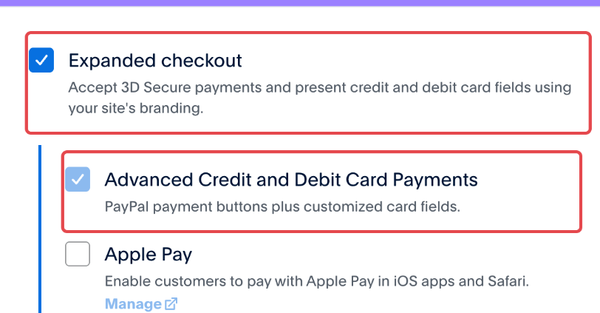
On the app page in the Developer Dashboard, find Features. Under Payment methods, tick Expanded checkout and Advanced Credit and Debit Card Payments.
-
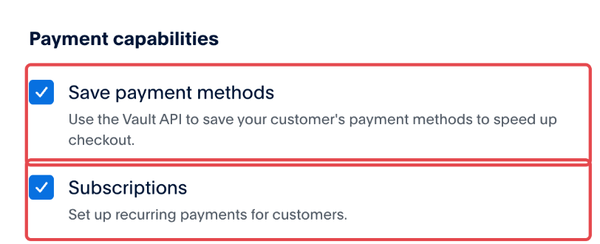
Under Payment capabilities, tick Save payment methods. Click Save Changes at the bottom of the features list.
-
For live payments, PayPal must approve your business account for Expanded Checkout. Until it does, the live app cannot use these features.
-
To save PayPal accounts too, open Account Settings → Payment Preferences in your PayPal Business account, review Save PayPal and Venmo payment methods, and tick Save PayPal accounts for renewals in aMember CP.
-
In aMember CP, enable the Credit Card Billing (
cc) module (Configuration → Add-ons → Modules) and make sure cron is running. -
Make sure the webhook includes both
VAULT.PAYMENT-TOKENevents from step 4.
Subscriptions started earlier in PayPal Subscriptions mode keep being billed by PayPal after you switch to Expanded Checkout.
Step 8. Test a payment
Section titled “Step 8. Test a payment”- Keep the sandbox app's credentials in aMember and Is it a Sandbox(Testing) Account? ticked.
- In the Developer Dashboard, open Testing Tools → Sandbox Accounts and note the email and password of a Personal sandbox account.
- Sign up for a product on your aMember signup page and pay with the PayPal button, signing in with the personal sandbox account.
- In aMember CP, open the user's account: the payment and the active subscription should be there.
- In the Developer Dashboard, open Event Logs and check that PayPal delivered the webhook events to aMember.
When the test works, switch the Developer Dashboard to Live, repeat steps 2–4 with a live app, replace the credentials and Webhook ID in aMember CP, untick Is it a Sandbox(Testing) Account? and save. In PayPal Subscriptions mode, also replace the sandbox plan IDs with live plan IDs.
Refunds and cancellations
Section titled “Refunds and cancellations”- Refunds you make from the payment in aMember CP are sent to PayPal. Refunds you
make in your PayPal account are recorded in aMember through the
REFUNDEDwebhook events. - When a customer cancels a subscription in the aMember member area, or you cancel it in aMember CP, aMember cancels the PayPal subscription too.
Troubleshooting
Section titled “Troubleshooting”aMember shows "Webhook ID is not configured, all notifications will be rejected". Complete step 4 and save the configuration.
Webhooks fail with status 400 and "Invalid webhook signature". The Webhook
ID in aMember does not belong to the webhook that sends the events, for example a
sandbox ID is used with the live app. Copy the ID again from the webhook list of
the app whose credentials aMember uses. PayPal retries failed deliveries, so the
missed events reach aMember after you fix the ID.
A customer sees "This recurring product has no PayPal plan ID". The billing plan has no Paypal Billing Plan ID in PayPal Subscriptions mode. See step 6.
A payment is rejected because of the amount. The price, trial or setup fee of the PayPal plan differs from the aMember billing plan. Make them match, or create a new PayPal plan and paste its ID into aMember. Details are logged in Utilities → Logs → Invoice.
See PayPal's documentation for more information about REST API credentials, webhooks and subscriptions.
Copyright © 2002–2026 www.amember.com. All Rights Reserved.